SonarFish records Zoom, Teams, Google Meet and in-person meetings right on your Mac – then writes down who said what. No bot in the call, no awkward "recording" notice, nothing uploaded unless you choose.
Version 0.9 beta · macOS 15 or later · Apple silicon
Lives quietly in your menu bar next to the clock. One click to record, and the transcript is waiting when the meeting ends.
SonarFish records the sound your Mac plays, so nobody sees an extra participant or a recording notice.
Zoom, Microsoft Teams, Google Meet, Webex, your browser – or a meeting room, using your Mac's microphone.
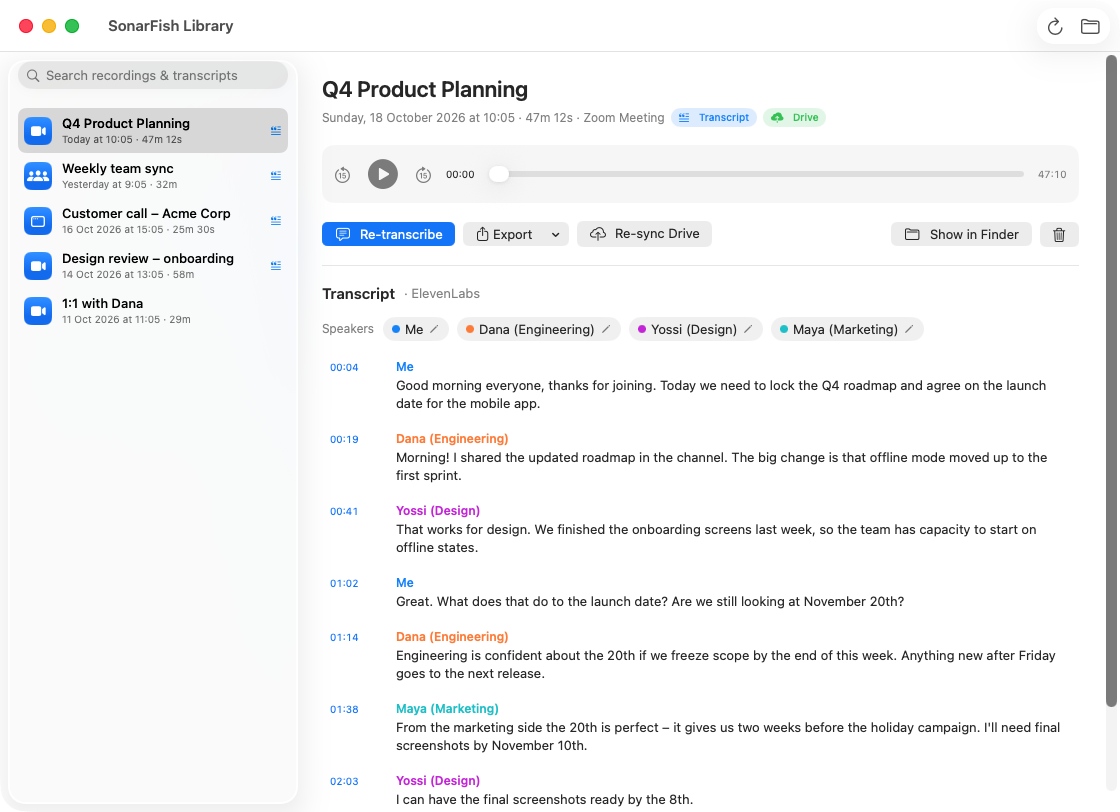
Transcripts label every speaker. Rename "Speaker 1" to a real name once and every line updates.
Transcribe in English, Hebrew or with automatic language detection – on your Mac for free, or with a top cloud engine.
Every recording and transcript is copied to your Google Drive automatically – ready on your phone or to share.
Mute yourself in Zoom and your voice is left out of the recording too – it matches exactly what the meeting heard.
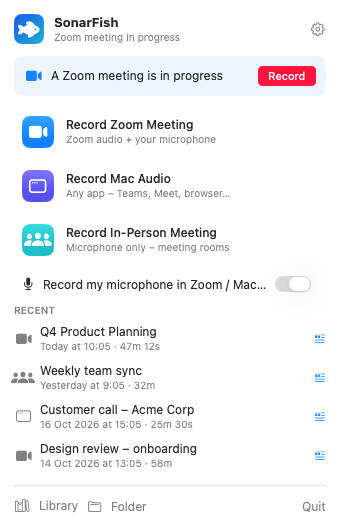
SonarFish notices when a Zoom meeting starts and asks if you'd like to record it – or starts by itself if you prefer.
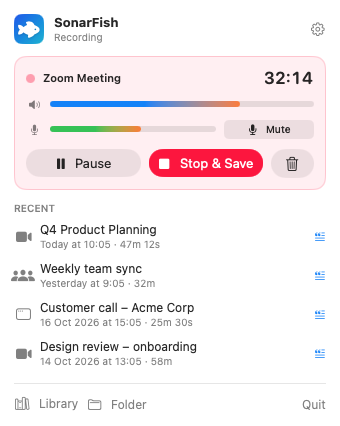
Pause, mute your mic, or stop and save in one click. A live timer next to the clock shows it's recording.
The transcript appears in your Library with speakers and timestamps. Click a line to hear that moment again.
The Library – play recordings, read transcripts, rename speakers and export.
Everything starts from the menu bar.
SonarFish has no servers that store your recordings. Everything is saved on your Mac – and in your own Google Drive if you turn it on.
SonarFish is in beta and not yet notarized by Apple, so macOS asks you to confirm it the first time. You only do this once.
Open SonarFish-0.9.dmg and drag SonarFish into Applications.
Open SonarFish from Applications. macOS shows a warning – click Done.
Go to System Settings › Privacy & Security, scroll down, click Open Anyway and confirm with your password or Touch ID.
💡 Then open Settings › Permissions in SonarFish and click Allow next to each item – microphone and screen & system audio are needed to record. Everything turns green when you're done.
Every feature is free during the beta. When it ends, new Macs get a 30-day free trial, and in-person recording stays free forever.
SonarFish doesn't join the meeting, so no notice appears in Zoom or Teams. You're responsible for telling participants – in many places the law requires everyone's consent before recording.
Zoom has its own mode with automatic meeting detection. "Record Mac Audio" works with anything that plays sound on your Mac – Teams, Google Meet, Webex, Slack huddles or a browser. In-person mode uses your microphone.
No. Recording and Apple's on-device transcription work offline. You only need internet for cloud transcription services and Google Drive backup.
Apple's free on-device engine handles Hebrew, and cloud engines such as ElevenLabs give excellent Hebrew accuracy with speaker detection. You choose the engine in Settings.
SonarFish is in beta and isn't notarized by Apple yet. The app is signed by SonarFish, and you only need to confirm it once – see the install steps above.
Macs with Apple silicon (M1 or newer) running macOS 15 or later. Free on-device transcription needs macOS 26.
In Documents › SonarFish on your Mac, one folder per meeting with the recording and its transcript. You can change the folder in Settings.